
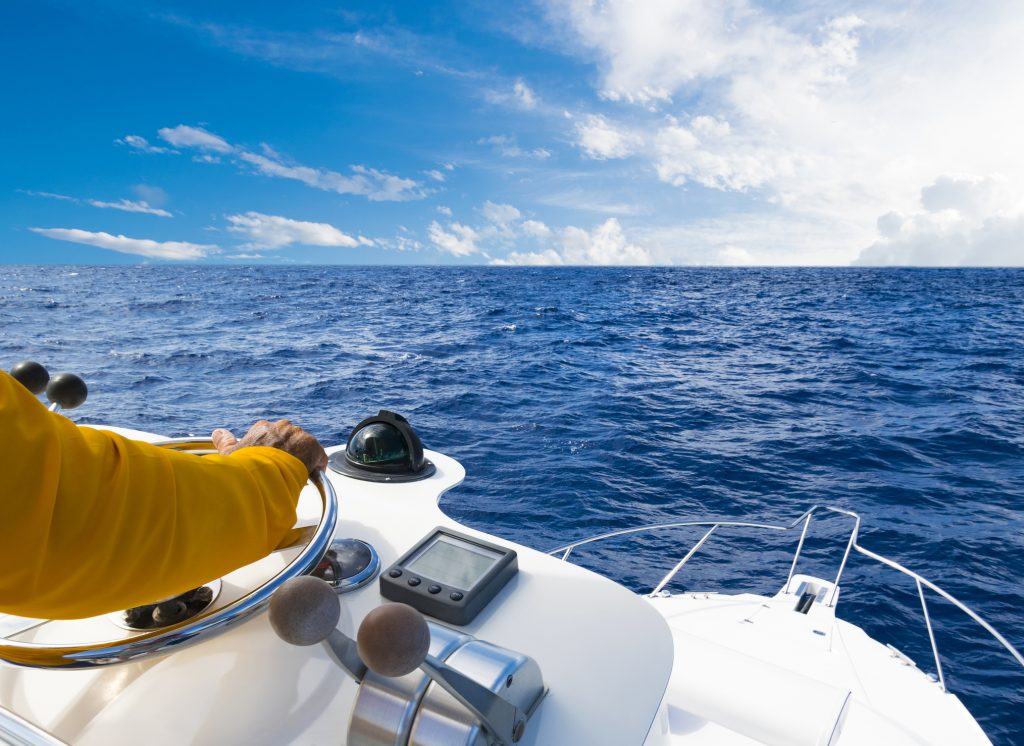
Kostnadene på et båtlån varierer veldig i forhold til om lånet er pantesikret eller ikke. Det er også store forskjeller mellom bankenes tilbud på finansiering av farkostene. Her får du en enkel oversikt over hva du må regne med i utgifter til renter og gebyrer, samt noen tips om hvordan du kan skaffe deg bedre betingelser på lånet.
Velge usikret eller sikret båtlån?
Det er mange ting som spiller inn i avgjørelsen om du bør velge et sikret eller usikret lån. Skal du låne høye summer, er lån med sikkerhet nesten alltid det beste valget. Du kan låne rundt en halv million til båt uten sikkerhet, men dette vil koste deg betydelig mer i renter enn om lånet er pantesikret.
Samtidig er et sikret lån vanskeligere å få tildelt. Du må nemlig stille med egenkapital, og som regel minimum 20%. I korte trekk vil usikrede båtlån være mest aktuelle når båten er rimelig, og båtkjøperen ønsker seg en lettere finansieringsprosess.
Kostnader for båtlån med sikkerhet
Rentebetingelsene på et båtlån med sikkerhet i båten (eller tilsvarende, for eksempel pant i bolig), vil være lavest dersom du har nok egenkapital. Grensen for krav til egenkapital kan variere fra bank til bank. De fleste som tilbyr båtlån med sikkerhet gir laveste renter til de som stiller med 35% eller mer i egenkapital. Minimumskravet er ofte 20%, og de høyeste rentene er da for de som har mellom 20% og 35% i egenkapital. Dette er for båter fra 7 meter og oppover i lengde. Lån til mindre båter har som regel noe høyere renter.
Her er et eksempel som illustrerer forskjellene. Vi låner 200 000 over 5 år hos DNB, for en båt på over 7 meter, og med egenkapital på over og under 35%:
- DNB (egenkapital 35% eller mer): Effektive renter 6,16%
- DNB (egenkapital under 35%): Effektive renter 6,95%
Tilsvarende lån når båten er under 7 meter:
- DNB (egenkapital 35% eller mer): Effektive renter 7,29%
- DNB (egenkapital under 35%): Effektive renter 8,36%
NB! Rentene er hentet fra Finansportalen den datoen artikkelen ble skrevet, og kan ha endret seg siden dette.
Andre utgifter for sikret båtlån
Du må betale for å få registrert båten i NOR (Skipsregisteret), selv om ikke alle båter er registreringspliktige. Banken kan nemlig ikke ta pant i båten uten at den er registrert der. NOR fungerer her på samme vis som Eiendomsregisteret gjør for boliger som sikres med pant, og som Løsøreregisteret når en bil pantesikres. Her også varierer kostnadene en del. Avgiften på 3 600 kroner må alle betale, og i tillegg kommer det avgifter for antall dokumenter og eventuelle andre forhold.
Du må også forsikre båten din. I utgangspunktet er ikke båteiere pålagte å ha forsikring, men du får ikke pantesikret båtlån uten dette.
Båtlån uten sikkerhet
Et usikret båtlån er en naturligvis dyrere, i og med at banken ikke tar pant i verken båten eller andre eiendeler. Du betaler ekstra fordi banken tar høyere risiko, men får samtidig noen fordeler.
For eksempel trenger du ikke registrere båten i Skipsregisteret dersom båten er kort nok (husk, båter over 15 meter må registreres uansett), og det stilles ikke krav til forsikring. Forsikring bør du imidlertid vurdere uansett, og det samme gjelder registreringen dersom båten har en viss verdi.
Slik bestemmes rentene på usikrede lån
 Rentene du kan forvente på et lån uten sikkerhet, uansett hva du skal bruke pengene til, er fra cirka 6% og oppover. Lånesummen spiller en rolle (et lite lån har vanligvis høyere renter enn et stort), men de avgjørende faktorene er kredittscoren og betalingsevnen din. Om banken mener du er en sikker betaler, får du lavere renter enn om det motsatte skulle være tilfelle.
Her er eksempler på rentenivåene i tre av de mest brukte bankene for lån uten krav til pantesikring:
- Bank Norwegian – båtlån inntil 600 000 – effektive renter fra 8,38%
- Easybank – båtlån inntil 500 000 – effektive renter fra 7,49%
- Santander Consumer Bank – båtlån inntil 350 000 – effektive renter fra 8,20%
Fordi rentetilbudene er individuelle utifra hvilken kredittscore søkeren har, vil gjennomsnittskostnadene på et usikret lån på denne størrelsen ofte ligge rundt 12% til 14%.
Totalkostnadene på sikrede og usikrede lån
Spørsmålet om du skal velge et sikret eller usikret lån er helt opp til deg, og du bør vurdere alle fordel og ulemper. Forskjellen i kostnader er ikke ubetydelige, men i noen tilfeller, og spesielt når båten er rimelig og ikke spesielt lang, vil et usikret lån ofte være et kurant alternativ.
Kostnadsforskjellene på det rimeligste lånet fra DNB, sammenlignet med et usikret lån til 12% rente, vil være omtrent slik:
- Totalkostnader pantesikret lån, 200 000 kroner over 5 år – 42 000 kroner
- Totalkostnader usikret lån, 200 000 kroner over 5 år – 71 000 kroner
Dette er dersom rentene på det usikrede lånet er 12%. Har du høy kredittscore og får de beste rentetilbudene, kan totalkostnadene komme helt ned i omtrent 50 000 kroner.
Velge rett lån
De fleste vil selvsagt ha lavest mulig kostnader når de låner til båt. uansett om du velger å låne med sikkerhet eller ei, bør du derfor innhente så mange lånetilbud som mulig. For eksempel er det ikke sikkert DNB har det rimeligste lånet, selv om Finansportalens opplysninger tilsier dette når artikkelen ble skrevet.
 Skal du låne uten sikkerhet blir det å sammenligne tilbud enda viktigere. Dette fordi renteforskjellene er større fra bank til bank.
Låne uten sikkerhet til egenkapital
Det hender folk skaffer egenkapital gjennom å låne uten sikkerhet. Dette er noe du bør være forsiktig med, av flere grunner. De viktigste grunnene er at banken du søker om sikret lån hos, kan komme til å avslå søknaden når egenkapitalen kom fra et lån. Det andre er at dine totalkostnader kan bli meget høye.
Dersom du likevel går for en slik løsning, bør du prioritere å betale tilbake det usikrede lånet så raskt du kan.
Oppsummering
Finansieringskostnadene når du skal kjøpe båt kan variere veldig. Den viktigste faktoren er om du tar opp båtlån med eller uten sikkerhet. Med sikkerhet betyr at banken tar pant i båten du kjøper, eller i annen eiendom, for eksempel bolig. For å få et sikret lån må du stille med egenkapital på mellom 20% og 35%. Båten må i tillegg registreres i Skipsregisteret, samt ha forsikring.
Et usikret båtlån koster mer, men det stilles ingen krav fra bankens side. Hent alltid inn mange tilbud før du bestemmer deg for hvilken bank du skal låne fra.